
Karaoke Systems Singapore
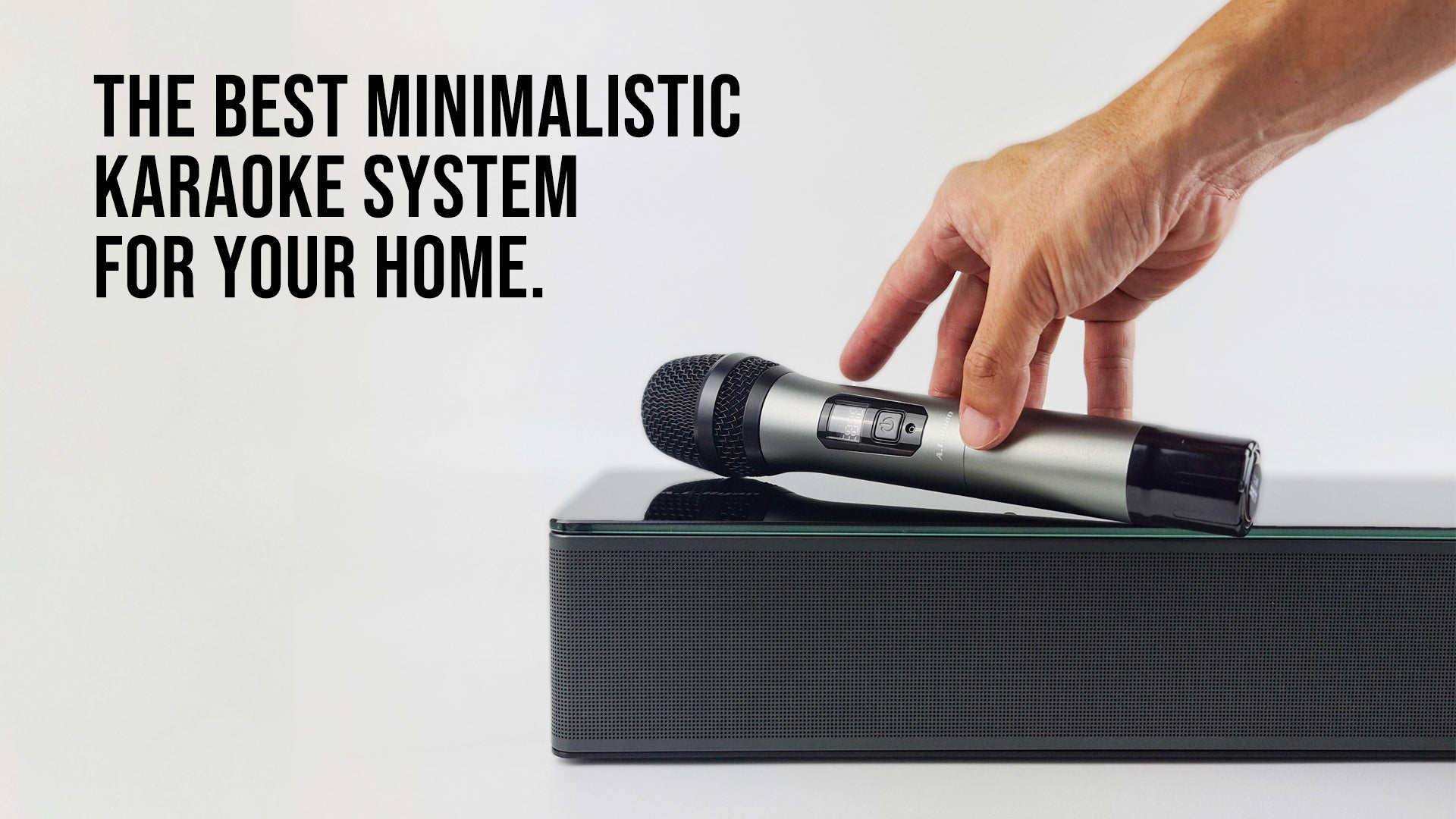
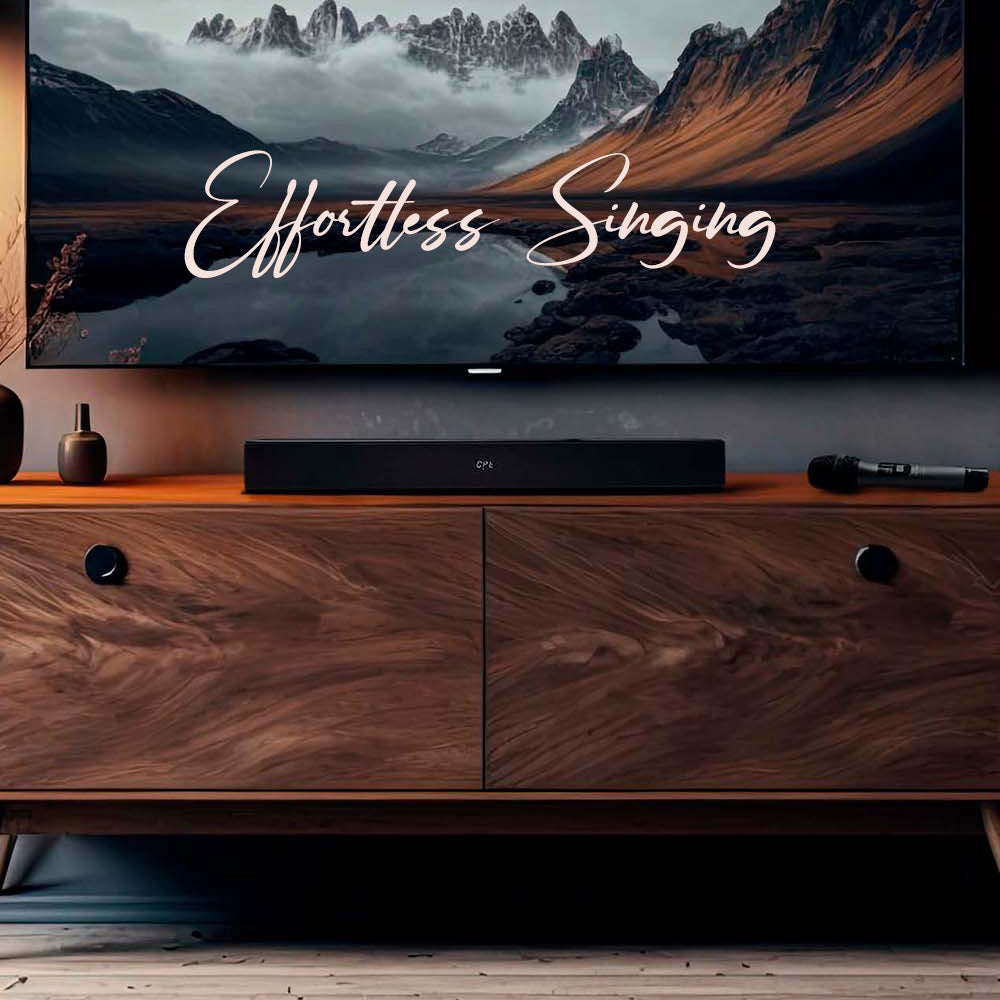
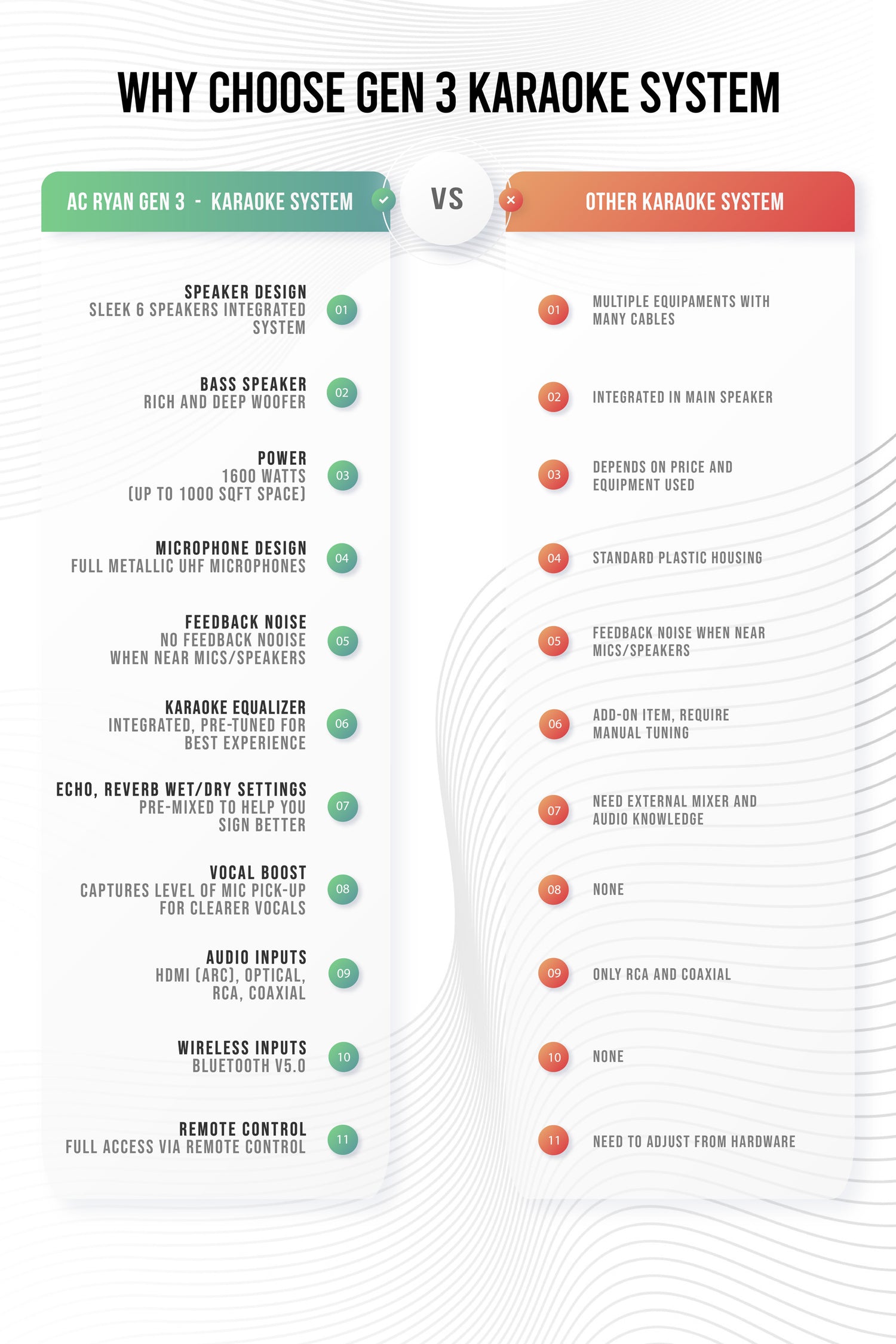
The Gen 3 Karaoke System is the best home karaoke system which allows you to sing better, effortlessly.
What Our customers Say
KTV System, Elegantly Wrapped
Using advanced technology, our home karaoke system is able to analyze and adjust your performance in real-time, helping you hit every note perfectly.
Fully integrated, this Slim Home Karaoke System is the one for you.

Tuned to Perfection
Our Digital Sound Processor is precisely tuned for 360° anti-feedback from the wireless microphones, canceling feedback noise from all angles of the room.
The mic echo, reverb and wet/dry settings are also pre-tuned to fill your voice with concert-like effects. So you spend more time singing than tuning.
Making this one of its kind in any KTV system - the perfect karaoke set for home.
Become a Better Singer
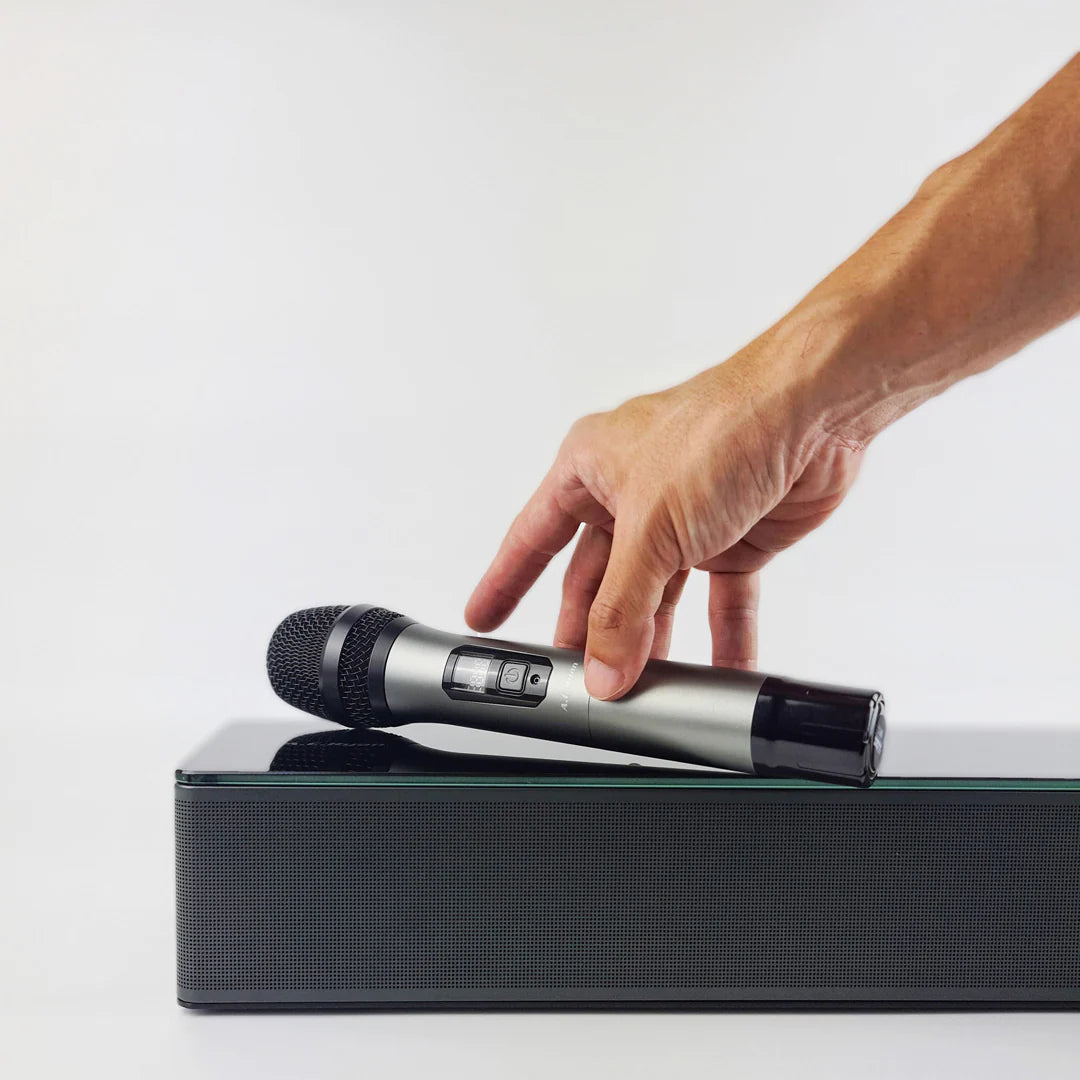
Our specially designed microphones come with a Vocal Boost feature that suits different singers’ vocals for best singing results. You will find yourself singing more and getting better.
Our Karaoke Systems
-
Gen 3 Karaoke System
Regular price $1,099.00 SGDRegular priceUnit price per$1,099.00 SGDSale price $1,099.00 SGD Sold out
 -
Gen 3 Karaoke System + Karaoke Streaming Box
Regular price $1,249.00 SGDRegular priceUnit price per$1,249.00 SGDSale price $1,249.00 SGD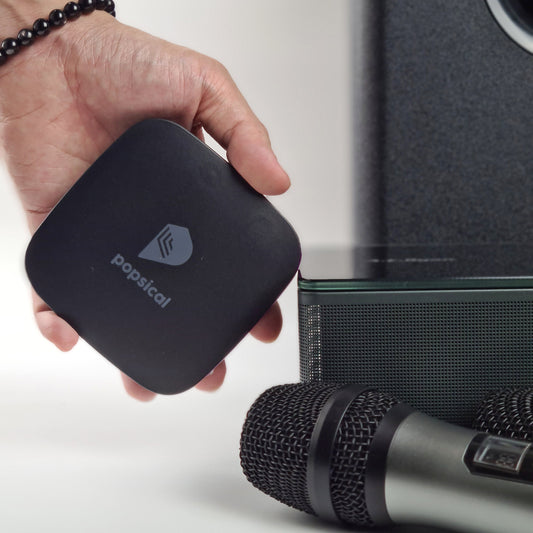 Sold out
 -
Gen 3 Karaoke System *Refurbished*
Regular price $699.00 SGDRegular priceUnit price per$1,099.00 SGDSale price $699.00 SGD Sold out




Karaoke Setup, easy.

Cinematic Bass
Experience the thrill of your own personal movie theater with our advanced karaoke system.
Our mid-range speakers ensure crystal clear dialogue while the powerful Bass Module adds an immersive touch to special effects.
Gather the family and enjoy movie night like never before.
Thus being the most versatile among all other karaoke systems for home.
-

Your Own Live Concert.
Now you can karaoke at home like your fav idol in your own living room! -
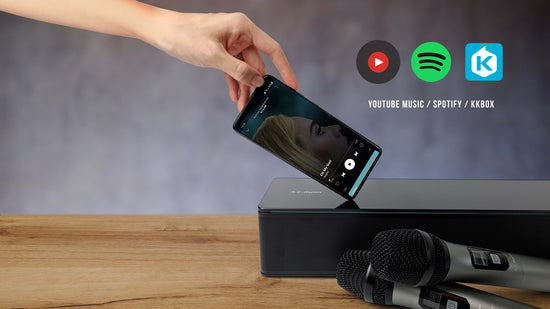
Unlimited Songs.
Simply connect via Bluetooth to your smart devices and stream your favorite karaoke song from YouTube, Spotify or KKbox and more for limitless song library.